I recently ran into an issue where IIS was returning a 404.13 error when users were trying to upload files. I did a bit of looking and found that files uploaded fine when they were lower than 30MB. But once we tried to upload anything larger, IIS would return the 404.
With a bit of digging we found that there is a maxAllowedContentLength setting in IIS 7.5. Who knew? Well, I guess I should have. In IIS 7.5, the default limit for this setting is 28.6 MB. At any rate, here is how you can change this setting. Note: The maxAllowedContentLength specifies the maximum length of content in a request, in bytes.
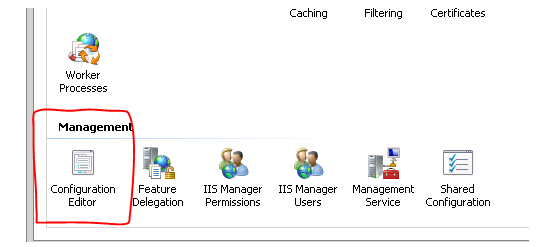
To change this, open IIS Admin, click on the server and then double click “Configuration Editor”
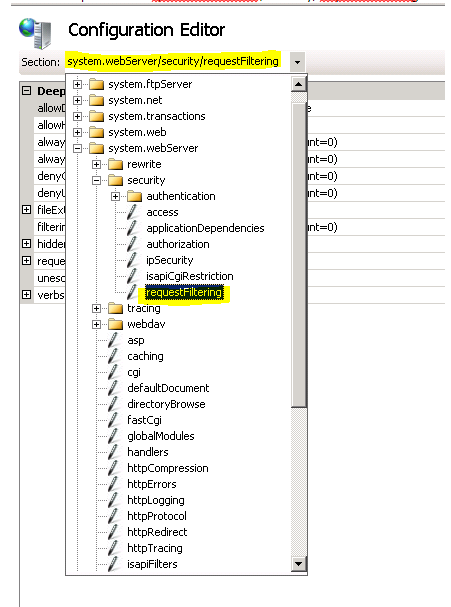
Once that opens select system.webServer/security/requestfiletering from the dropdown at the top of the window.
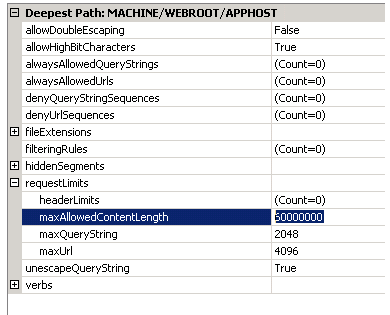
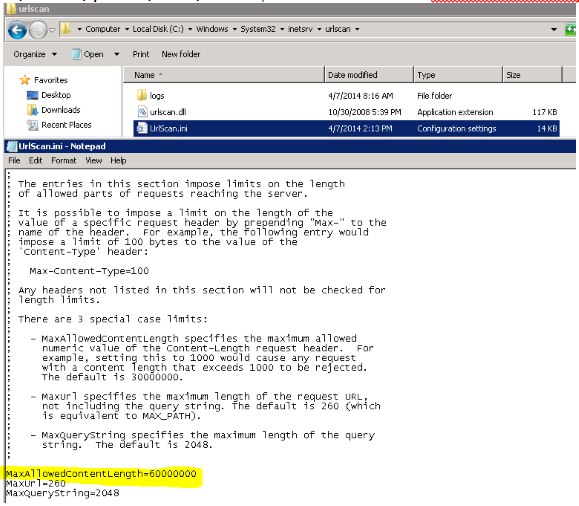
Next, if you have URLScan installed on the server, the MaxAllowedContentLength setting will need to be changed there as well. To edit the UrlScan.ini file, navigate to:
C:\Windows\System32\inetsrv\urlscan – open the UrlScan.ini and find MaxAllowedContentLength and set the limit to match your new setting in IIS.
Finally, to apply the setting changes perform and IISRESET.
© 2014, Robert Owen. All rights reserved.