Long time, no type. 🙂
Like most things on this site, the information is here because I keep forgetting how to do something.
I upgraded everything to Windows 10 and think its really pretty good. But, that’s a conversation for another post. The reason for this post is the AT&T line coming into my house was struck by lightning a couple of weeks ago. As a result my router and a few switches were fried. So, I to make the dreaded support call and get a technician to come out and replace, well, pretty much everything. Including the main line coming from the pole. When all of that was done, I had a new router with a new name and password.
I renamed the router to the old name of my SSID but decided to change the password as I hadn’t done that in a while. (you should do that on occasion). So, long story short. My laptop and surface were trying to connect to my wireless using a password that was incorrect. To change this, you need to make Windows “Forget” the connection.
A quick and easy way to do this is via the command line or in a PowerShell window. First you need to list the connections known by windows so you can accurately identify it by name. To do this open a PowerShell (or command prompt) window and type the following command:
netsh wlan show profiles
This will provide you a list of all wireless networks your had your PC remember.
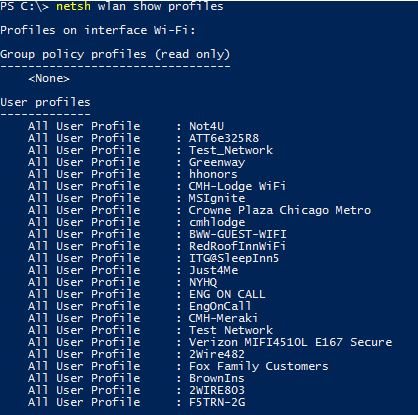
Now that you have your list, identify the network you need to “Forget”. To remove it type the following command in your PS window.
netsh wlan delete profile name=”Name you want to delete“

The network has now been forgotten. now all you need to do is connect to the SSID and type the new password. There is a way to do this from the GUI as well. But, I like the command line version better. It’s quick enough. 🙂
© 2015, Robert Owen. All rights reserved.