• Technology Leader & Musician
  • Home
  • About
    • Terms
  • Blog
  • Contact
  • Webmail

Robert Owen — Technology Leader & Musician

Technology leadership, music, and the space where they overlap

  • Blog
  • Internet
    • IIS 6
    • IIS 7.5
    • Javascript
    • Web Design
      • WordPress
      • Coldfusion
  • Support
    • MicroSoft
      • Powershell
      • Surface
      • Windows10
      • Zune
    • PC-Care
    • Software
    • Virus
      • Email Scam
    • Vista Quest
    • Windows 7
  • Pictures
    • Instagram
  • Music
  • Friday Funnies
  • General
    • CoWorking
    • Gadgets
    • Politico
    • Random – TidBit
    • Rant
    • Review
    • Site of the Week
    • Useless
    • Xbox
      • Games
You are here: Home / Support / MicroSoft / Use the Snipping Tool to Capture Menus

Use the Snipping Tool to Capture Menus

August 27, 2009 By Robert Owen

When Vista came on the scene one of the new features I thought was pretty cool was the new Snipping tool.  It’s a really useful little utility and for the most part it’s great.  In Windows 7, the tool is still there (no improvements that I can see).  But, one of the things about this little utility that bothered me was my inability to use it to capture context and other drop-down menus.  Every time I would open the menu I needed to capture, it would disappear as soon as I selected the Snipping Tool.

This really annoyed me.  There has to be a way!?  Well, it turns out there is a really simple solution for this.  To use the Snipping Tool to capture menus, follow these steps.

First, locate and start the Snipping Tool.  When the tool starts it will be in “New capture” mode.  Click Cancel but, don’t close the tool.  Next, open the menu you want to capture.  With that menu open, press the “Control” and “Print Screen” buttons on your keyboard.  This will re-activate the Snipping Tool in the “New Capture” mode.  Now just capture your image.
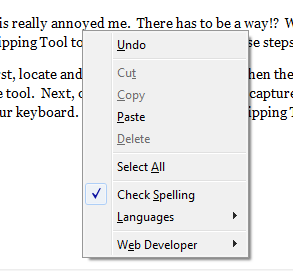
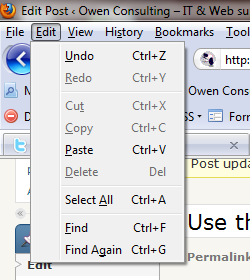
menu-snip1menu-snip2

As you can see above, it works quite well.   This, “work-around”,  functions the same in Windows Vista and in Windows 7.  I’ve also tried it on my laptop and desktop and there was no difference in function.

© 2009, Robert Owen. All rights reserved.
Related posts:

Default ThumbnailHappy 4th of July! Default Thumbnail5 minute Management Course Default ThumbnailFriday Funny – Life Explained Default ThumbnailWindows 2003 Server does not stream FLV videos

Filed Under: MicroSoft, Random - TidBit Tagged With: Cancel, Capture Image, Control, Drop Down Menus, Improvements, Keyboard, Laptop, Menus, New Features, Screen Buttons, Simple Solution, snipping tool, Windows Vista

Robert Owen I lead technology organizations and perform professionally as a musician. Those worlds may seem unrelated, but both revolve around complex systems, disciplined preparation, and people working together under pressure.
Over time, that overlap has shaped how I approach leadership, collaboration, and the work I do every day. More about me →.
FacebookInstagramLinkedInTwitter

To Stay up-to-date on all of my crazy Ramblings, enter your e-mail address below.

You'll be amazed!

Recent Posts…

  • The Accidental Genesis (Friday’s Performance) – Night two
  • The Accidental Genesis – Horn player musings of creation
  • The Great Tab Debate: A Conversation with My AI Friend, Tabitha
  • What If? – Gig Edition
  • Feedback – two way street

Recent Comments

  • David Gray on Create a Shortcut to open in your Alternate BrowserTwelve years on, this tip remains useful. Though I…
  • Sue K on Use the Snipping Tool to Capture MenusThanks you so much! I could never figure out how t…
  • aa on Increase IIS File Upload LimitsSuperb Robert..after wasting 2 days..this is perfe…
  • León on Windows 7 error 86Funciono para Windows 7 , también descubrí que la…
  • Nicole Larkin on Use the Snipping Tool to Capture MenusNine years later and your post is still helpful. T…

[footer_backtotop]
Content Copyright © 2026 OWEN CONSULTING · All Rights Reserved · Log in