Use the Snipping Tool to Capture Menus
August 27, 2009 by Robert Owen
Filed under MicroSoft, Random - TidBit
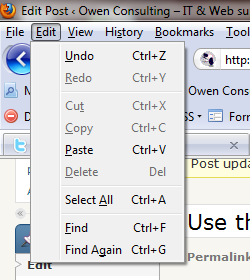
When Vista came on the scene one of the new features I thought was pretty cool was the new Snipping tool. It’s a really useful little utility and for the most part it’s great. In Windows 7, the tool is still there (no improvements that I can see). But, one of the things about this little utility that bothered me was my inability to use it to capture context and other drop-down menus. Every time I would open the menu I needed to capture, it would disappear as soon as I selected the Snipping Tool.
This really annoyed me. There has to be a way!? Well, it turns out there is a really simple solution for this. To use the Snipping Tool to capture menus, follow these steps.
First, locate and start the Snipping Tool. When the tool starts it will be in “New capture” mode. Click Cancel but, don’t close the tool. Next, open the menu you want to capture. With that menu open, press the “Control” and “Print Screen” buttons on your keyboard. This will re-activate the Snipping Tool in the “New Capture” mode. Now just capture your image.
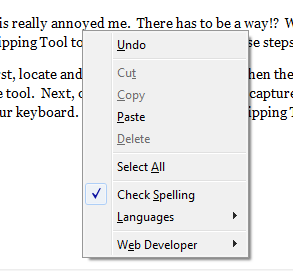
As you can see above, it works quite well.  This, “work-around”, functions the same in Windows Vista and in Windows 7. I’ve also tried it on my laptop and desktop and there was no difference in function.
© 2009, Robert Owen. All rights reserved.
Possibly Related Posts:
- Interesting Pay Scale
- Create a Shortcut to open in your Alternate Browser
- My Latest Upgrade
- Windows 7 Telnet Client
- Windows 7 error 86


nice tips men! vista is very complicated and their only few people can used it to the fullest..
Oh you JUST saved me the price of SnagIT! Seriously – I got so frustrated with not being able to get the dropdown menu that I downloaded the SnagIT eval this past weekend. Thanks so much!
Christie´s last blog ..Thesis Theme discount – some things to watch out for!
It’s really a pretty good little utility. Still probably wont do everything that programs like snagIT will do but I find it gets the job done. Especially since I figured out this little piece!
Why not just print screen and cut the jpeg from paint ?
Well, you could do that… But this was about using the utility supplied to accomplish the task.
Oh wow you saved me again! I was trying to capture a dropdown list of user attributes from SharePoint – and I didn’t see any way to “delay” capture in Snipping Tool but my old brain remembered that you had given us a trick. Thanks again!
No Problem! Glad it helps!
Awesome thanks, have always been looking for a way to capture menu’s easily…