Friday, March 12, 2010

Windows 7 Telnet Client

December 7, 2009 by Robert Owen  
Filed under MicroSoft, Windows 7

I dropped to a command prompt today on my Windows 7 machine to telnet into my Cisco Router and found, that once Again the Microsoft telnet client is not installed.
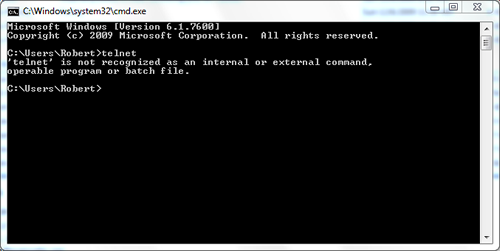
telnet-1

It seems that, as with Windows vista, the Microsoft Telnet client is not installed by default.   But luckily it’s pretty easy to install,  just follow these simple steps:

  1. Click the Start “Pearl” and select the Control Panel from the menu.
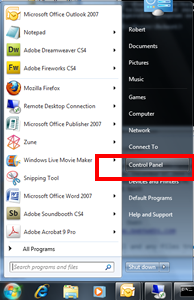
    telnet-2
  2. Once the Control Panel opens, double click the Programs and Features  applet.
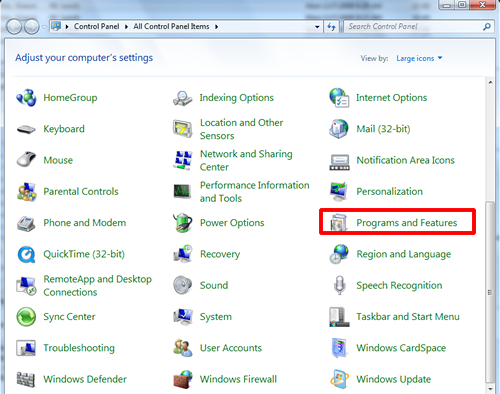
    telnet-3
  3. A new window will open. Select “Turn Windows Features on or off” from the left menu.
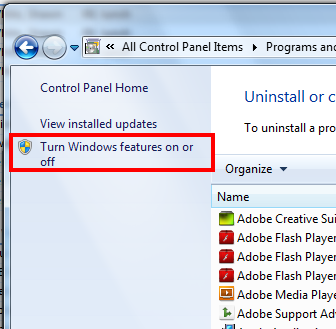
    telnet-4
  4. Again, a new window will open. Check the box beside “Telnet Client” … Also, if you want to enable your “Telnet Server” or “TFTP Client” you can select them at this time also. Click Ok after you have finished your selections.
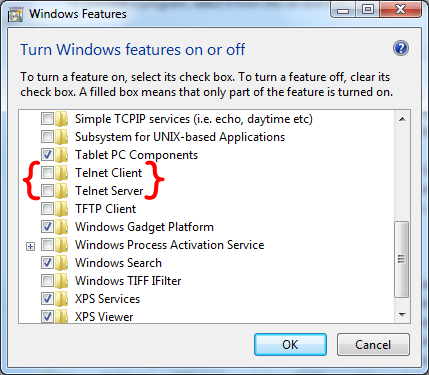
    telnet-5
  5. Windows will not prompt you that it is installing the components.

    telnet-6

After if completes you will be able to make use of the Windows Telnet client.
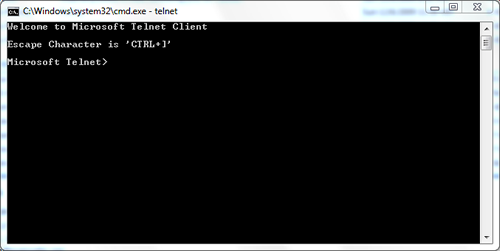
telnet-7


Enjoy!

© 2009, Robert Owen. All rights reserved.
Possibly Related Posts:


Tell the Masses:
  • Digg
  • Twitter
  • del.icio.us
  • FriendFeed
  • Facebook
  • email
  • Print
  • Google Bookmarks
  • Technorati
  • Live
  • LinkedIn
  • StumbleUpon

Comments

2 Responses to “Windows 7 Telnet Client”
  1. John Wesley says:

    Just what I was looking for! thank you dude!
    John Wesley´s last blog ..Hello world! My ComLuv Profile

  2. Wayne John says:

    You have to do the same thing for setting up IIS too if you’re going to do some local web development. Cheers!
    Wayne John´s last blog ..How to install Windows 7 – Upgrade your operating system with ease with these tips My ComLuv Profile

Speak Your Mind

Tell us what you're thinking...
and oh, if you want a pic to show with your comment, go get a gravatar!

CommentLuv Enabled