IIS 6: Adding Footers to Web Pages
July 16, 2009 by Robert Owen
Filed under IIS 6, MicroSoft
Did you know you can configure the Microsoft IIS 6 web server to automatically insert an HTML-formatted file to the bottom of every web page sent out by your Web Server? Well, you can.
For example, you host several sites and want to add a link back to your company for advertisement. You could create a simple HTML file that contained a text message and an image that you hyperlink back to your web site. Then enable the footer function in IIS 6.
Once you enable this feature, IIS automatically appends the footer file to the designated Web page or file each time the Web page or file is accessed. *Note the following info from Microsoft:
Document footers can reduce Web server performance, especially if a Web page is frequently accessed.
A footer file should be not be a complete HTML document. It should contain only those HTML tags necessary for formatting the appearance of footer content. For example, a footer file that adds your organization’s name to the bottom of every page should consist of text and the HTML tags necessary for formatting the font and color.
To enable this feature of IIS 6, you will need to be a member of the Administrators group on the local computer. (As well as have Console or Remote Desktop access)
Once logged onto the desktop follow these steps:
- Create an HTML file containing your footer informtion and save it your server’s hard drive.
- In IIS Manager, expand the local computer, expand the Web Sites folder, right-click a Web site, directory, or file, and click Properties.
- Click the Documents tab, and select the Enable document footer check box.
- In the box below Enable document footer, type either the full local path to the footer file or click Browse to navigate to it.
- Click OK.
Possibly Related Posts:
- Create a Shortcut to open in your Alternate Browser
- My Latest Upgrade
- Windows 7 Telnet Client
- Windows 7 error 86
- Windows 7 Clean Install from Upgrade
Remote Shutdown, Oh how I love thee…
June 17, 2009 by Robert Owen
Filed under MicroSoft, Software
I manage a few Windows Servers across my VPN… Updating software, OS, and managing backups, etc. And, sometimes when you are installing an update that requires a reboot things can get a little complicated. Especially, if that server has a lot of services running and you are logged in via Remote Desktop. If there a lot of services that have to be shut down, sometimes the server can hang in the process… Cutting your remote session but not finishing the reboot process.
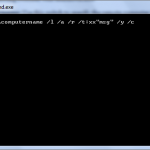
So… enter shutdown.exe. Shutdown.exe is a command line tool that can be used to shutdown and/or reboot local or remote servers. (Granted you have administrative privileges) You can use shutdown.exe two ways. By command line and the Graphic user inteface. If you want to try the command line approach, Shutdown.exe uses the following syntax:

- \\computername: Use this switch to specify the remote computer to shut down. If you omit this parameter, the local computer name is used.
- /l (Note that this is a lowercase “L” character): Use this switch to shut down the local computer
- /a: Use this switch to quit a shutdown operation. You can do this only during the time-out period. If you use this switch, all other parameters are ignored.
- /r: Use this switch to restart the computer instead of fully shutting it down.
- /t:xx: Use this switch to specify the time (in seconds) after which the computer is shut down. The default is 20 seconds.
- “msg“: Use this switch to specify a message during the shutdown process. The maximum number of characters that the message can contain is 127.
- /y: Use this switch to force a “yes” answer to all queries from the computer.
- /c: Use this switch quit all running programs. If you use this switch, Windows forces all programs that are running to quit. The option to save any data that may have changed is ignored. This can result in data loss in any programs for which data is not previously saved.
Examples
- To shut down the local computer in two minutes and display a “The computer is shutting down” message, use the following line in a batch file or type it at a command prompt, and then press ENTER:
shutdown /l /t:120 “The computer is shutting down” /y /c
To cancel the shutdown process, type the following line at the command prompt, and then press ENTER:
shutdown /l /a /y - To shut down and restart a remote computer named “Support,” use the following line in a batch file or type it at a command prompt, and then press ENTER:
shutdown \\support /r
- To schedule the local computer to shutdown and restart at 10:00 P.M., type the following line at a command prompt, and then press ENTER:
at 22:00 shutdown /l /r /y /c
- To schedule the local computer to shutdown and restart at 6:00 P.M. every weekday, type the following line at a command prompt, and then press ENTER:
at 18:00 /every:M,T,W,Th,F shutdown /l /r /y /c
Now you can also do the same thing with the Graphic interface. To activate the GUI Open a command prompt and type: shutdown /i you will then be presented with a window that will look like this:
From the dropdown menus you can choose equivalent selection for the command line switches. Using this method to reboot the remote server takes the Remote Desktop out of the active services list and has been a great help in reliably rebooting the remote servers. This is a great help when you cannot get physically to the server Console and perform the reboot. This command line utility is present in Windows XP, Sever 2003, Windows Vista and Windows 7. I’ve not attempted this from a Server 2008 machine yet but, if it is not available there I will update you.
Possibly Related Posts:
- Create a Shortcut to open in your Alternate Browser
- My Latest Upgrade
- Windows 7 Telnet Client
- Windows 7 error 86
- Windows 7 Clean Install from Upgrade