Remote Shutdown, Oh how I love thee…

June 17, 2009 by Robert Owen  
Filed under MicroSoft, Software

I manage a few Windows Servers across my VPN… Updating software, OS, and managing backups, etc. And, sometimes when you are installing an update that requires a reboot things can get a little complicated. Especially, if that server has a lot of services running and you are logged in via Remote Desktop. If there a lot of services that have to be shut down, sometimes the server can hang in the process… Cutting your remote session but not finishing the reboot process.

So… enter shutdown.exe. Shutdown.exe is a command line tool that can be used to shutdown and/or reboot local or remote servers. (Granted you have administrative privileges) You can use shutdown.exe two ways. By command line and the Graphic user inteface. If you want to try the command line approach, Shutdown.exe uses the following syntax:

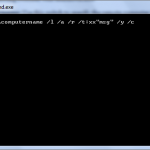
shutdown \\computername /l /a /r /t:xxmsg” /y /c
.
command line activation
You can use the following switches with Shutdown.exe:
  • \\computername: Use this switch to specify the remote computer to shut down. If you omit this parameter, the local computer name is used.
  • /l (Note that this is a lowercase “L” character): Use this switch to shut down the local computer
  • /a: Use this switch to quit a shutdown operation. You can do this only during the time-out period. If you use this switch, all other parameters are ignored.
  • /r: Use this switch to restart the computer instead of fully shutting it down.
  • /t:xx: Use this switch to specify the time (in seconds) after which the computer is shut down. The default is 20 seconds.
  • msg: Use this switch to specify a message during the shutdown process. The maximum number of characters that the message can contain is 127.
  • /y: Use this switch to force a “yes” answer to all queries from the computer.
  • /c: Use this switch quit all running programs. If you use this switch, Windows forces all programs that are running to quit. The option to save any data that may have changed is ignored. This can result in data loss in any programs for which data is not previously saved.

Examples

  • To shut down the local computer in two minutes and display a “The computer is shutting down” message, use the following line in a batch file or type it at a command prompt, and then press ENTER:
    shutdown /l /t:120 “The computer is shutting down” /y /c

    To cancel the shutdown process, type the following line at the command prompt, and then press ENTER:

    shutdown /l /a /y
  • To shut down and restart a remote computer named “Support,” use the following line in a batch file or type it at a command prompt, and then press ENTER:
    shutdown \\support /r
  • To schedule the local computer to shutdown and restart at 10:00 P.M., type the following line at a command prompt, and then press ENTER:
    at 22:00 shutdown /l /r /y /c
  • To schedule the local computer to shutdown and restart at 6:00 P.M. every weekday, type the following line at a command prompt, and then press ENTER:
    at 18:00 /every:M,T,W,Th,F shutdown /l /r /y /c

Now you can also do the same thing with the Graphic interface. To activate the GUI Open a command prompt and type: shutdown /i you will then be presented with a window that will look like this:

shutdown gui

From the dropdown menus you can choose equivalent selection for the command line switches. Using this method to reboot the remote server takes the Remote Desktop out of the active services list and has been a great help in reliably rebooting the remote servers. This is a great help when you cannot get physically to the server Console and perform the reboot. This command line utility is present in Windows XP, Sever 2003, Windows Vista and Windows 7. I’ve not attempted this from a Server 2008 machine yet but, if it is not available there I will update you.

Possibly Related Posts:


Remote Desktop /console change in Vista SP1

April 16, 2008 by Robert Owen  
Filed under General, MicroSoft, Vista Quest

A while back I blogged about Remote Desktop in Windows XP. Since the start of my Vista Quest I have continued to use the Vista remote desktop with great success. That is until I installed Services pack 1.

Here lately I’ve been noticing some differences when I log into some servers I manage. Nothing drastic mind you but there were some things that were no longer the same. So I got to Googeling

I use the /console when logging in to these servers. For those who don’t know the /console switch gives you the ability to log into a remote server with out using a Terminal Service client and it also logs you into the desktop that you would see if you were standing at the machine. So, If you started a process that was going to take a long time, you could log into that session remotely and check on or finish the process. And if you needed to install some software that could not be installed “remotely” the /console switch would allow you to continue.

With the introduction of Vista SP1 the /console switch no longer holds the same function. They have changed the /console to /admin The main reason for this is for compatibility with the new Server 2008 platform.

Server 2008 doesn’t have a concept of a console that you can login to as that session (session 0) is for services and doesn’t have an interactive session associated with it. The /admin switch is to login to the session that would have the physical keyboard/screen attached to it.

So… For those of you using Vista with Service Pack 1 you need to start using /admin instead of /console. It appears this is true even connecting to Server 2003.

Possibly Related Posts:


Remote Desktop Slow in Vista

I am using my Vista Ultimate machine primarily now for day-to-day work.. And everything is running quite smoothly to be honest. No crashes, no freezes, no spyware.. Everything is great.

I help manage SEVERAL servers across my WAN and use Remote Desktop to great effect. But, last week a new Server was added. I logged in with my trusty Remote desktop to start setting up an SFTP server. Only, this time everything was WAY WAY WAY Slow… I mean I was waiting a good thirty seconds between clicks. I thought it might be my connection so I logged off, ran some speed tests, logged into another server and everything was great. So, I logged back into the server in question. SLOW! What’s going on?? On a whim I tried to log in to the server from my XP machine… It was Super Speedy??

Time to hit Google. Did a search and ran across the VoIP & Gadgets Blog. Looks like Tom was having the same trouble and found a solution.

Remote Desktop 6.0 leverages a new feature called auto-tuning for the TCP/IP receive window that could be causing the trouble. What is auto-tuning for the TCP/IP receive window? Well, the new Microsoft TCP/IP stack supports Receive Window Auto-Tuning. Receive Window Auto-Tuning continually determines the optimal receive window size by measuring the bandwidth-delay product and the application retrieve rate, and adjusts the maximum receive window size based on changing network conditions.

In Vista, Receive Window Auto-Tuning enables TCP window scaling by default, allowing up to a 16 MB window size. As the data flows over the connection, the TCP/IP stack monitors the connection, measures the current bandwidth-delay product for the connection and the application receive rate, and adjusts the receive window size to optimize throughput. The new TCP/IP stack no longer uses the TCPWindowSize registry values which many third-party utilities used to “tweak”.

Receive Window Auto-Tuning has a number of benefits. It automatically determines the optimal receive window size on a per-connection basis. In Windows XP, the TCPWindowSize registry value applies to all connections. Applications no longer need to specify TCP window sizes through Windows Sockets options. And IT administrators no longer need to manually configure a TCP receive window size for specific computers.

This setting can be turned off in Vista. First open a command prompt (cmd) as Administrator.. It’s not good enough for your user to have Administrative privileges… Right click on the Icon and select “Run as Administrator”
Then when the command window opens type:

netsh interface tcp set global autotuninglevel=disabled

To re-enable this feature you need to type:

netsh interface tcp set global autotuninglevel=normal

Tom also says that in some cases you may need to type:

netsh interface tcp set global rss=disabled

But I did not have to.. The first command solved my problem immediately!!

This also makes this my Site of the Week! Because it was WAY handy, Go by and check it out.. Maybe Tom has some answers for you?

Possibly Related Posts: